Open the Menu screen
Click More → Menu at the top of TezBill.
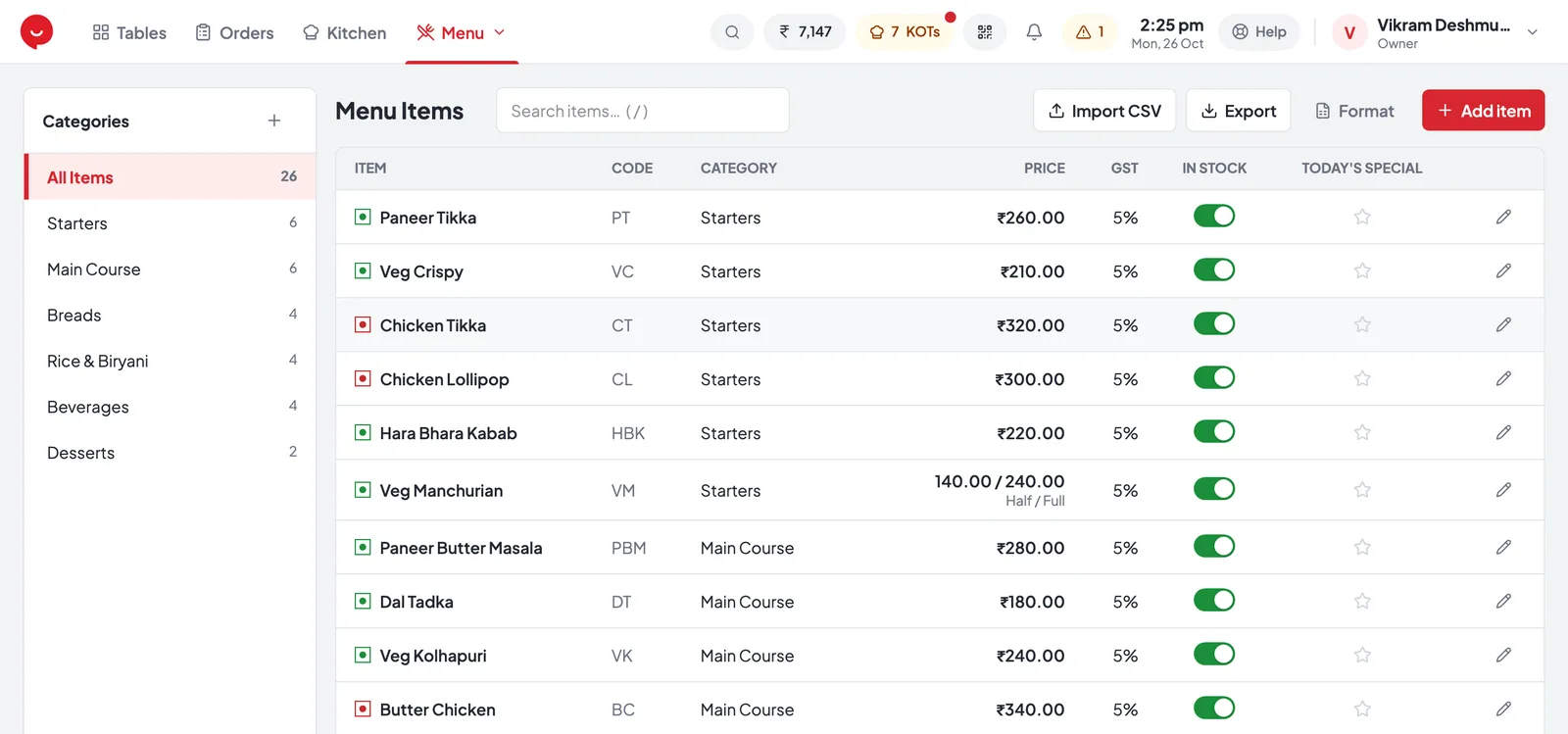
- 1+ next to Categories — add a category (step 2)
- 2Add item Alt+N — add a dish (step 3)
- 3Import CSV — load a whole menu at once (step 4)
- 4Format — Excel template or AI prompt (step 4)
- 5In stock — switch off when a dish is finished for the day
- 6Today’s Special star — shows the dish first at billing
Add your categories
Click + next to Categories, type a name and save. Add them in the order you want at billing.
Add an item
Click Add item Alt+N, fill in the form and press Save. Repeat for every dish.
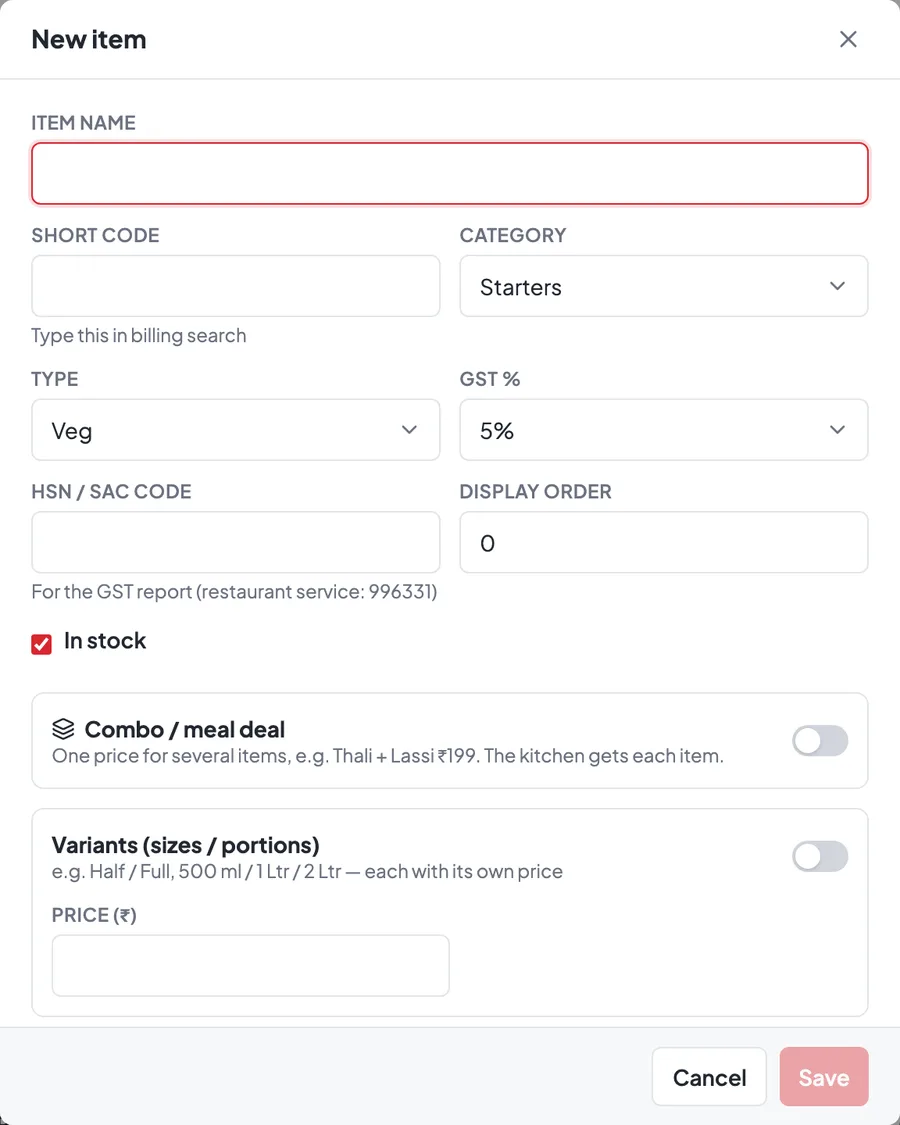
- 1Item nameAs it should print on the bill, e.g. Paneer Butter Masala.
- 2Short codeA few letters, e.g. PBM. Type it at billing to find the item instantly.
- 3CategoryWhere the item shows at billing and which printer gets its KOT.
- 4TypeVeg or Non-veg — shows the green / red dot.
- 5GST %Usually 5% for restaurants. Only used when GST is on in Settings.
- 6HSN / SAC codeFor the GST report. Restaurant service: 996331. Can be left empty.
- 7In stockKeep ticked. Untick when the dish is finished — it can’t be billed.
- 8Price (₹)The selling price. Has sizes? Turn on Variants instead.
- 9SaveThe item is ready to bill straight away.
Extras that make billing faster
All optional — add them now or later.
Half / Full or 500 ml / 1 Ltr? In the item, turn on Variants (sizes / portions) and add each size with its own price.
Extra cheese, extra butter: create groups in Settings → Add-ons, then attach them to items with the Add-ons chips.
One price for several items, e.g. Thali + Lassi ₹199. Turn on Combo / meal deal, pick the items and set the combo price.
Click the star next to an item in the Menu list. It shows first on the billing screen for today.
Import your whole menu at once
From an Excel sheet, or straight from a photo of your menu card.
- In More → Menu, click Format → Download template.
- Open menu-template.csv from Documents → TezBill Exports in Excel.
- One row per item, like the example below. Save it as CSV.
- Click Format → Copy AI prompt.
- Open ChatGPT, Gemini or Claude, paste the prompt and attach a clear photo or PDF of your menu.
- Save the answer as menu.csv.
| category * | item * | size | price * | veg | gst | short_code | hsn |
|---|---|---|---|---|---|---|---|
| Starters | Paneer Tikka | 260 | veg | 5 | PT | 996331 | |
| Starters | Chicken Lollipop | 300 | nonveg | 5 | CL | ||
| Starters | Veg Manchurian | Half | 140 | veg | 5 | VM | |
| Starters | Veg Manchurian | Full | 240 | veg | 5 | VM | |
| Main Course | Paneer Butter Masala | 280 | veg | 5 | PBM | ||
| Beverages | Mineral Water | 500 ml | 20 | veg | 5 |
- category, item, price are required (*).
- size: one row per size, same item name.
- veg: veg or nonveg (guessed from the name if empty).
- gst: 0, 5, 12, 18 or 28 — default 5.
C Import the file
Click Import CSV, choose your file, then pick how to import it:
Items that already exist (same name) are left as they are. Safest choice.
Existing items get the new price, sizes, GST and veg flag from the file.
Deletes all items and categories first. You must type REPLACE; a backup is taken. Old bills don’t change.
D Check the preview, then import
Rows with problems are listed by line number — fix them or skip them.