- Your menuSet up in More → Menu
- A bill printerConnected in Settings → Printers
- Your PINCashier, manager or owner
- Your tablesSet up in More → Table Setup
Not done yet? See Set up your menu and Connect your printers.
- AvailableOpen the table
- KOT pendingItems added, not sent
- RunningKOT sent to the kitchen
- Bill printedWaiting to pay
- AvailableAfter Save & Settle
Open a table
On the Tables screen, click a free table.
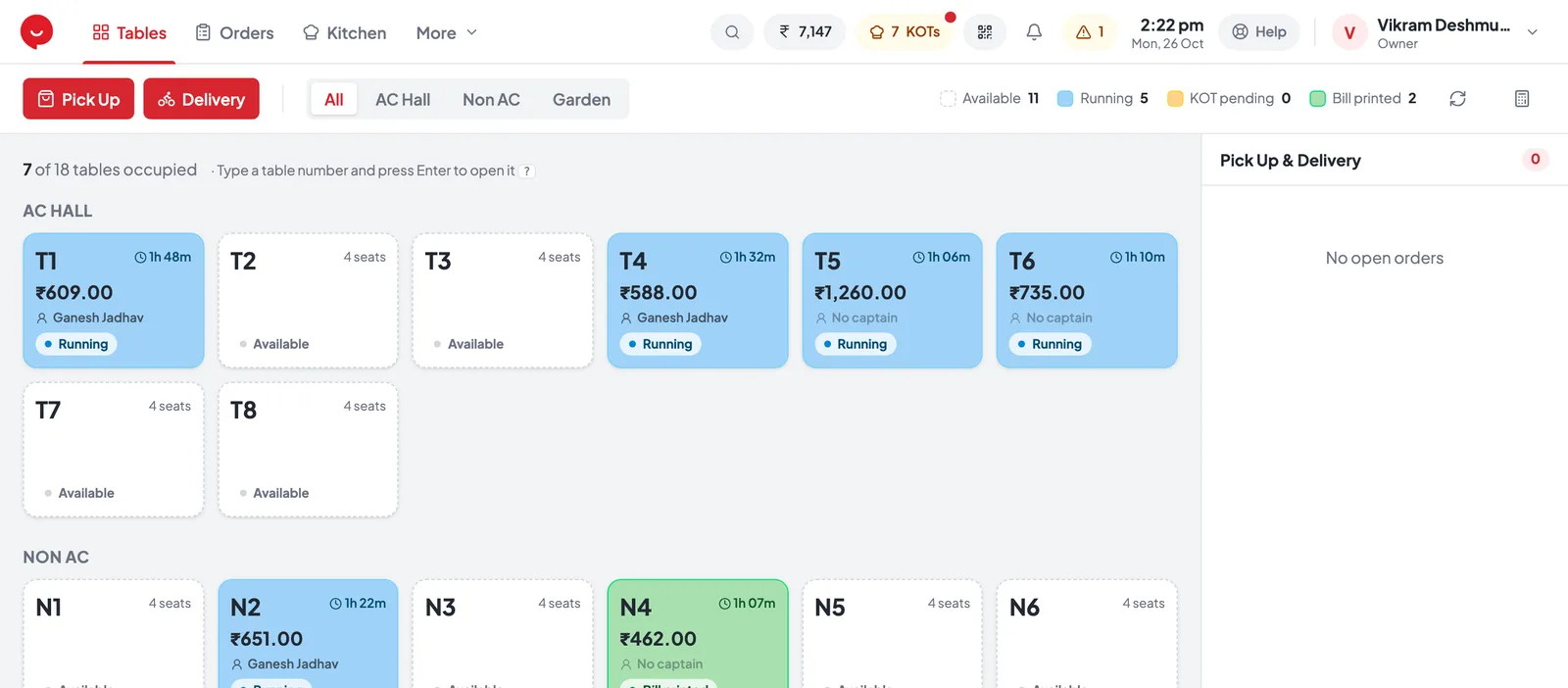
- 1An available table — white. Click it to open the order.
- 2A running table — blue: the KOT has gone, with its total and time.
- 3Or type the table number and press Enter.
- 4Colour key — how many tables are available, running, KOT pending or printed.
Add items
Click a tile, or type the name or short code in the search box.
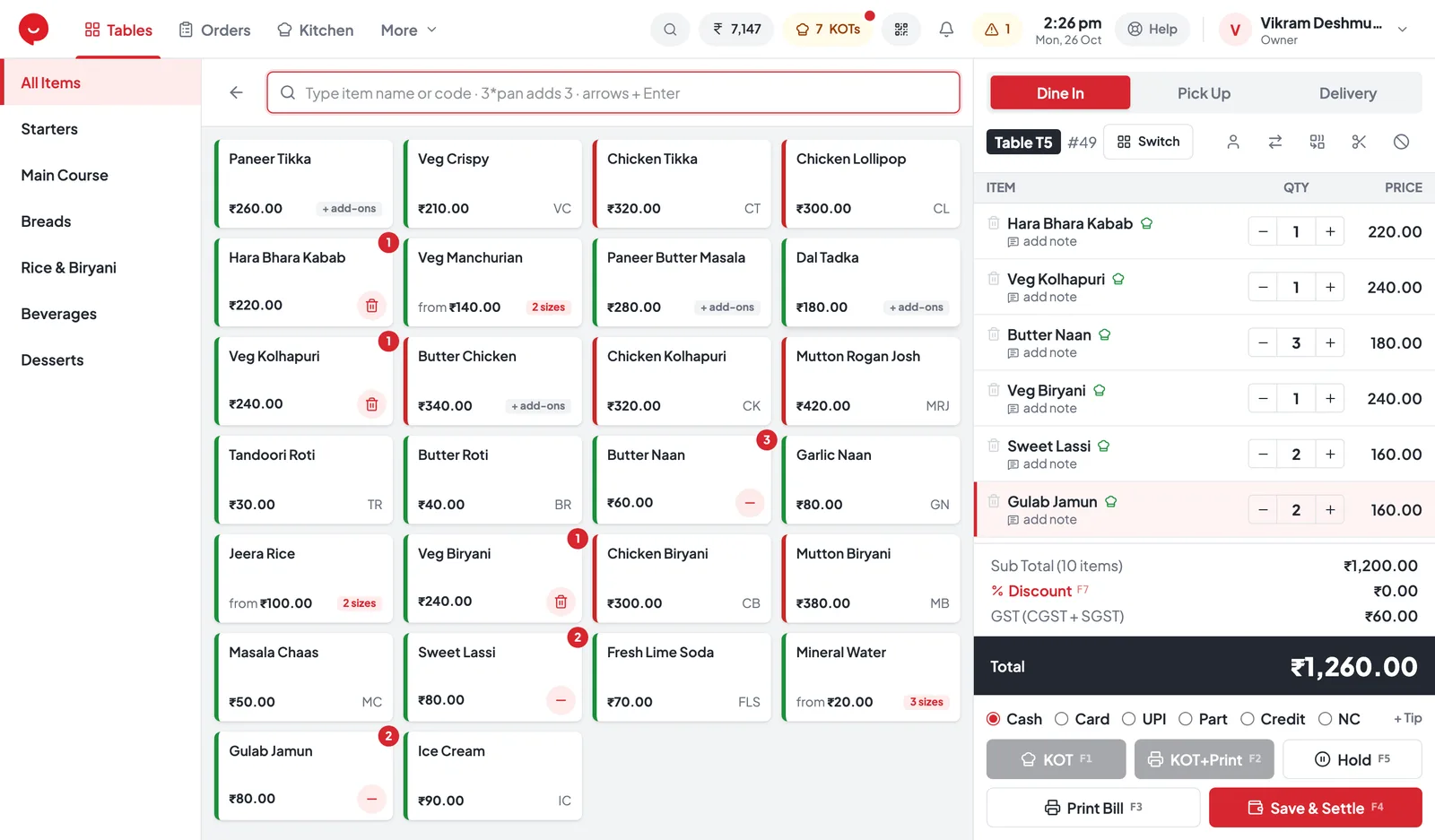
- 1Search — type a name or short code; 3*pan adds 3 Paneer.
- 2Categories — show one part of the menu.
- 3Item tiles — click to add; the badge counts what’s on the order.
- 4The order — change quantity with − / +, or add note F8.
- 5Payment mode — Cash, Card, UPI, Part, Credit or NC.
- 6KOT F1 sends to the kitchen · Print Bill F3 · Save & Settle F4.
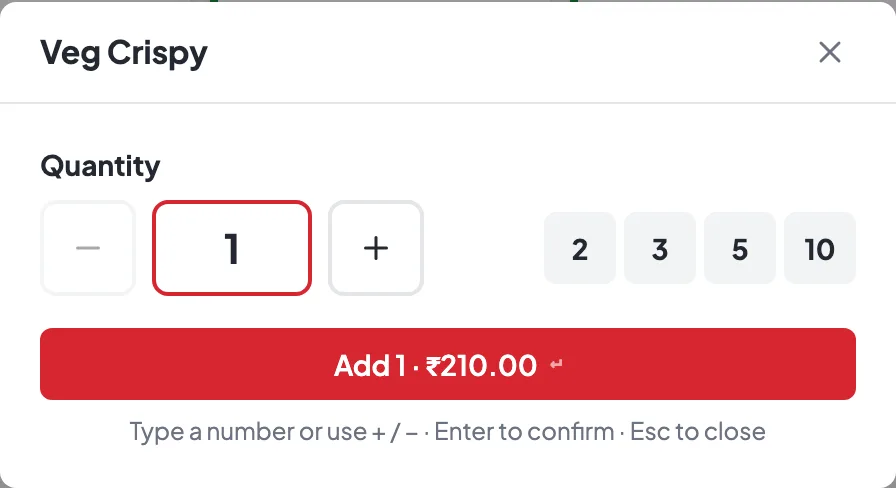
After you click a tile, type a number or tap 2, 3, 5 or 10, then press Enter.
Need a note for the kitchen, like Less spicy or Jain? Press add note under the item, or F8.
Send the KOT to the kitchen
Only the new items go — add more any time and send again.
Sends the new items to the kitchen and takes you back to the tables. The table turns blue.
Also prints a copy of the KOT at the counter.
Saves the order without a KOT — for an order you’ll send later.
Print the bill
When the guests ask for the bill.
Open the table and press Print Bill F3. The table turns green so everyone can see it’s waiting for payment.
Need a discount first? Press F7 before printing. Customer name, number of persons and captain: F6.
Settle the payment
Pick how they paid, then press Save & Settle F4. The table is free again.
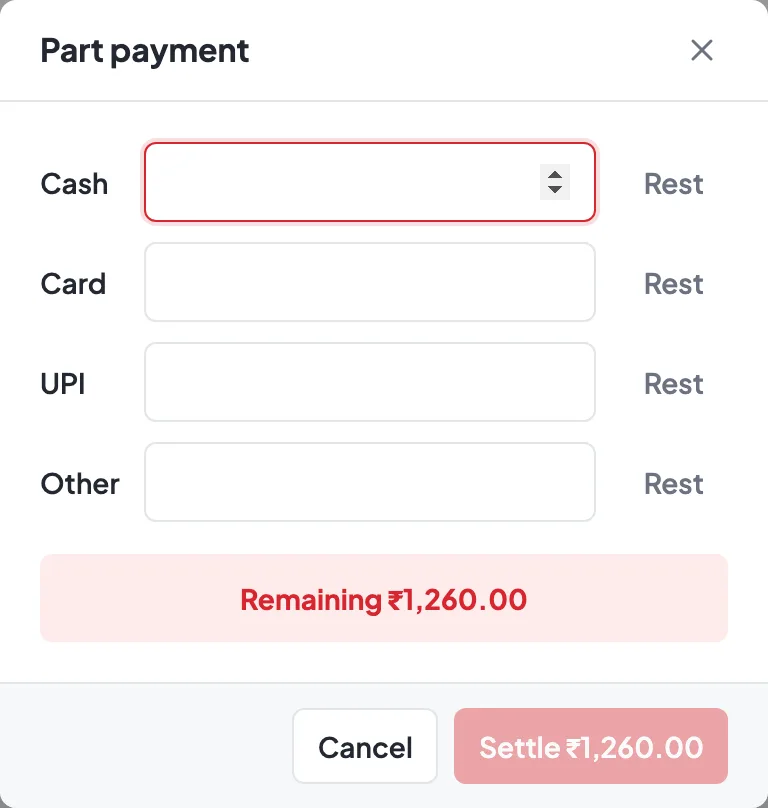
Choose Part, type each amount — Rest fills what’s left — and settle when it shows fully paid.
Credit bills print “CREDIT - to be paid later”. Collect them later in Customers → Credit dues → Receive.
Keyboard shortcuts
Billing without the mouse is the fastest way at rush hour.
Common questions
Tap a question to see the answer.
The guests moved to another table
Use Move table at the top right of the bill and pick a free table. To join two running tables, use Merge instead.
They want separate bills
Press Split bill, choose what goes on the new bill with − / +, then Create new bill. Both bills are settled separately.
Remove an item the kitchen already has
Cashiers and captains need a manager’s approval. The kitchen sees the item struck out on the next KOT.
Print the bill again
Go to Orders, open the bill and press Reprint bill. It prints “DUPLICATE”.