- Owner loginOnly the owner can change permissions
- Your staff listName and job of each person
- A PIN for each person4–6 digits, different for everyone
- Phones for captainsOptional — for the waiter app
Open the Staff screen
Click More → Staff.
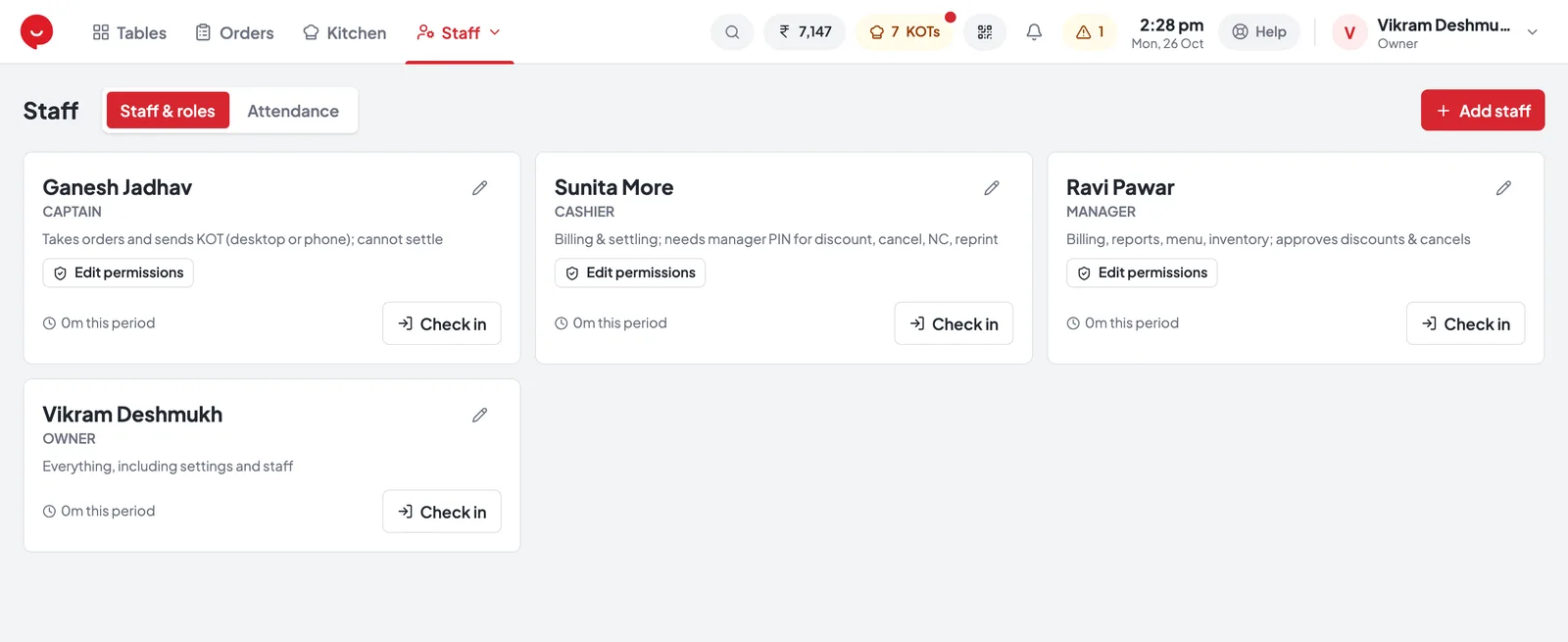
- 1Add staff Alt+N — add a person
- 2Role — what they can do by default
- 3Edit permissions — change it for one person (owner only)
- 4Check in — start their shift for attendance
- 5Attendance — hours for any dates, with Export
Add a person
One entry for every person who uses TezBill.
- 1In More → Staff, press Add staff Alt+N.
- 2Type the person’s name and choose their Role.
- 3Give them a PIN of 4–6 digits — every person needs a different one.
- Save. They can log in with that PIN straight away.
What each role can do
The defaults for each role. The owner can always do everything.
| Action | Manager | Cashier | Captain |
|---|---|---|---|
| Take orders and send KOTs | ✓ | ✓ | ✓ |
| Settle bills (take payment) | ✓ | ✓ | — |
| Split and merge bills | ✓ | ✓ | — |
| Give a discount | ✓ | PIN | — |
| NC (complimentary) or credit bill | ✓ | PIN | — |
| Cancel an order | ✓ | PIN | — |
| Remove an item the kitchen already has | ✓ | PIN | PIN |
| Reprint a bill | ✓ | PIN | — |
| Open the cash drawer (no sale) | ✓ | PIN | — |
| Day close, expenses, customers | ✓ | ✓ | — |
| Reports, menu, stock, staff | ✓ | — | — |
| Settings | — | — | — |
Change one person's permissions
On their card, press Edit permissions. Only the owner can do this.
They can do it on their own.
A manager or the owner types their PIN to approve, each time.
The button is hidden or blocked.
Each action can be set to one of these. Changed items are highlighted, and Reset to role defaults undoes them all.
Security and features always stay with the owner unless you pick All settings.
Manager approvals
How a cashier gets a discount, cancel or reprint approved.
- Cashier asks
Presses Discount, Cancel, NC… — an approval box opens.
- Manager approves
Types their own PIN on the cashier's screen.
- Done & recorded
Who asked and who approved go into Reports → Audit.
Log in, lock and shifts
Each person uses their own PIN, so every bill shows who made it.
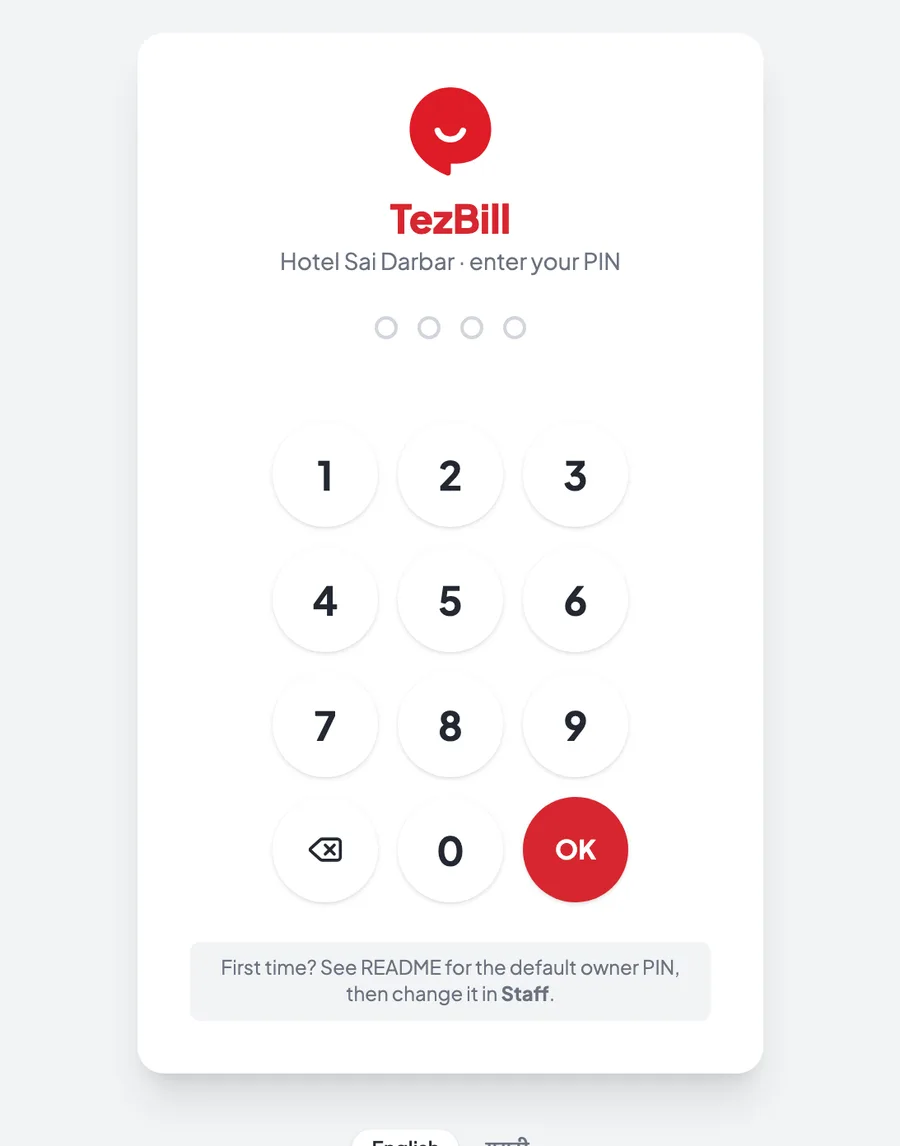
- Log inType your PIN on the pad or keyboard and press OK or Enter.
- Lock screenLeaving the counter? Your name at the top right → Lock screen Ctrl+L. Any open bill is saved first. Auto-lock after inactivity is in Settings → Restaurant → Security.
- Switch userShift change? Choose Switch user and the next person enters their PIN.
- Shifts & attendanceYour name → Start my shift / End my shift, or Check in on the Staff card. Staff → Attendance shows the hours, with Export to Excel.
Common questions
Tap a question to see the answer.
Someone forgot their PIN
The owner or a manager sets a new one in More → Staff.
Who gave that discount?
Every approval is recorded with who asked and who approved. See Reports → Audit.
Can a captain take payment?
Not by default — captains take orders and send KOTs. The owner can allow it with Edit permissions.
I don't want approvals at all
In Settings → Restaurant → Security, set Manager approval for cashiers to Not required. We recommend keeping it on.